HPC2N can be interfaced not only using the terminal, but also by using a GUI. There are two solutions that HPC2N provide; the fully-fledged desktop experience using ThinLinc, and the more advanced manager OOD. What separates the two is that ThinLinc simply provides a desktop interface to the cluster, with the same possibilities as connecting using the terminal. OOD contains file managing tools, job managers/viewers and session managers, which introduces a different way to interface with the cluster.
ThinLinc
The documentation at HPC2N provides a guide to install the software on your computer directly, or a link to connect directly via your browser. Pick the one that suits you.
You will be greeted by a login screen. Use the HPC2N account you set up earlier to login. You’ll be greeted by the desktop environment.
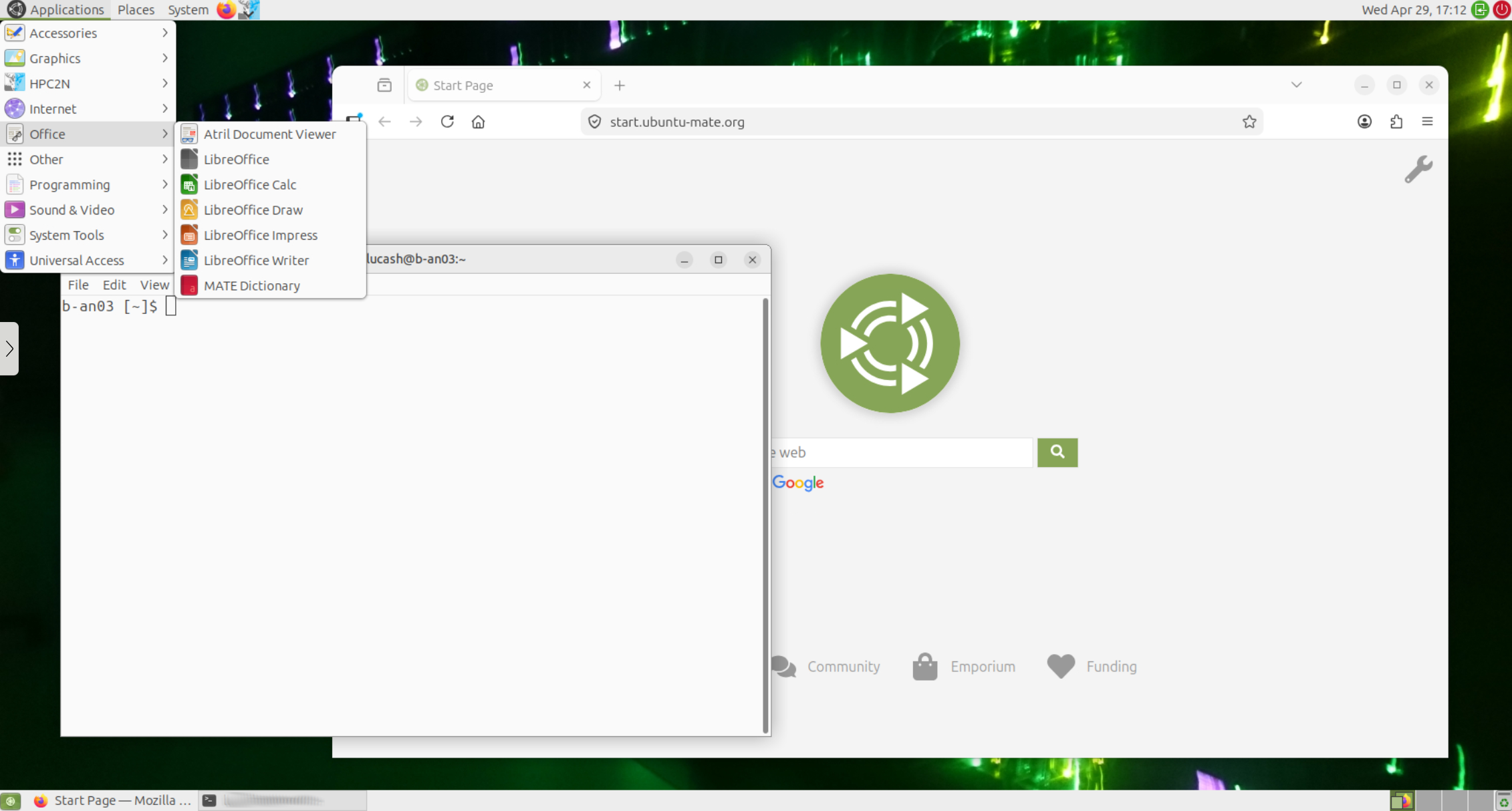 The Linux desktop provided by ThinLinc in the browser. As shown, you can do the regular things you can on any desktop. Run web browsers, text editors etc.
From this interactive interface you can easily move and manipulate files you’ve uploaded to the cluster using e.g. FileZilla. The only need for a terminal is to submit jobs, but this only requires two simple steps. From the folder where your sbatch file resides, right click in the folder view and press Open in Terminal. This will open a terminal prompt in the folder you’ve navigated to. To run your sbatch file, which we say in this case is called run.sbatch, simply type
sbatch run.sbatch
You should see a job submission confirmation and your job ID.
OOD
HPC2N has possibilities for using the resource with Open OnDemand (OOD). This is a web software that provides tools for file management and resource usage. We refer to their documentation.
Here we list the tabs that might be useful for your workflows.
Files
In OOD the tab Files provides a file explorer which easily lists your home directory and your project storages. Here you can upload files and manage them easily from the web.
Jobs
Unfortunately the tab “Job composer” is currently not fully functional. However, “Active jobs” lists all jobs currently active that is submitted under projects your account is associated with.
 Here is an example of the “Active Jobs” page where a job called
 merge_raster is queued, waiting to run. You can also see the user who submitted it, and which project it’s associated with.
Interactive apps
This is the most powerful feature of OOD. Here you can start interactive sessions of certain tools
Kebnekaise desktop- A fully-fledged desktop directly on HPC2N. This desktop works as a computer that has direct connections to the resources at CFL. You can either start a low-resource session with just a single core for a short time, and submit batch jobs from there, or you can have a session with a lot of resources and run your code there directly. Remember to shut down the session once done, since your resources will be used as long as the session is running!Jupyter Notebook,MATLAB proxy,RStudio Server- all interactive sessions of respective development environments for Python, MATLAB and R. These function very similar to the desktop, but where it’s only that language that you’re using. This is very useful if you want to, e.g., test Python code interactively on the cluster before submitting jobs.VSCode- an interactive session of the development environment VSCode.